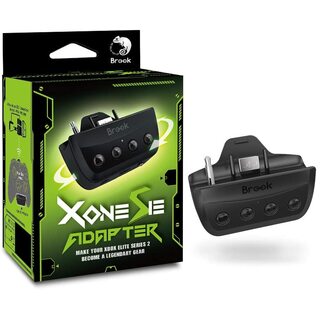
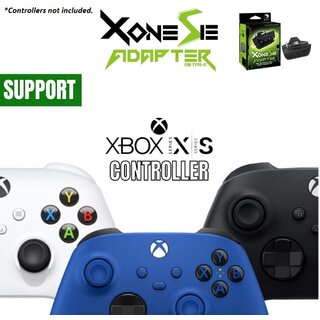
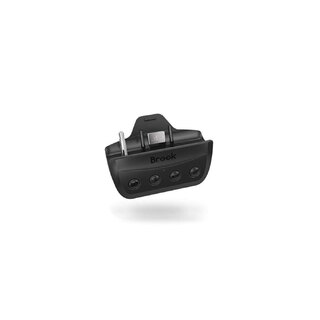
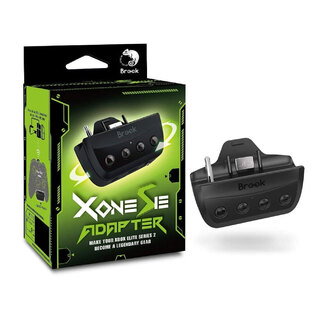
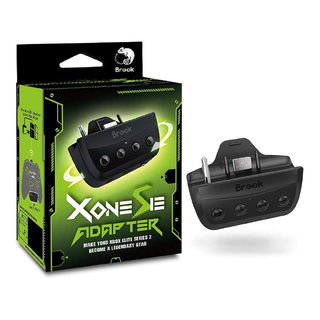

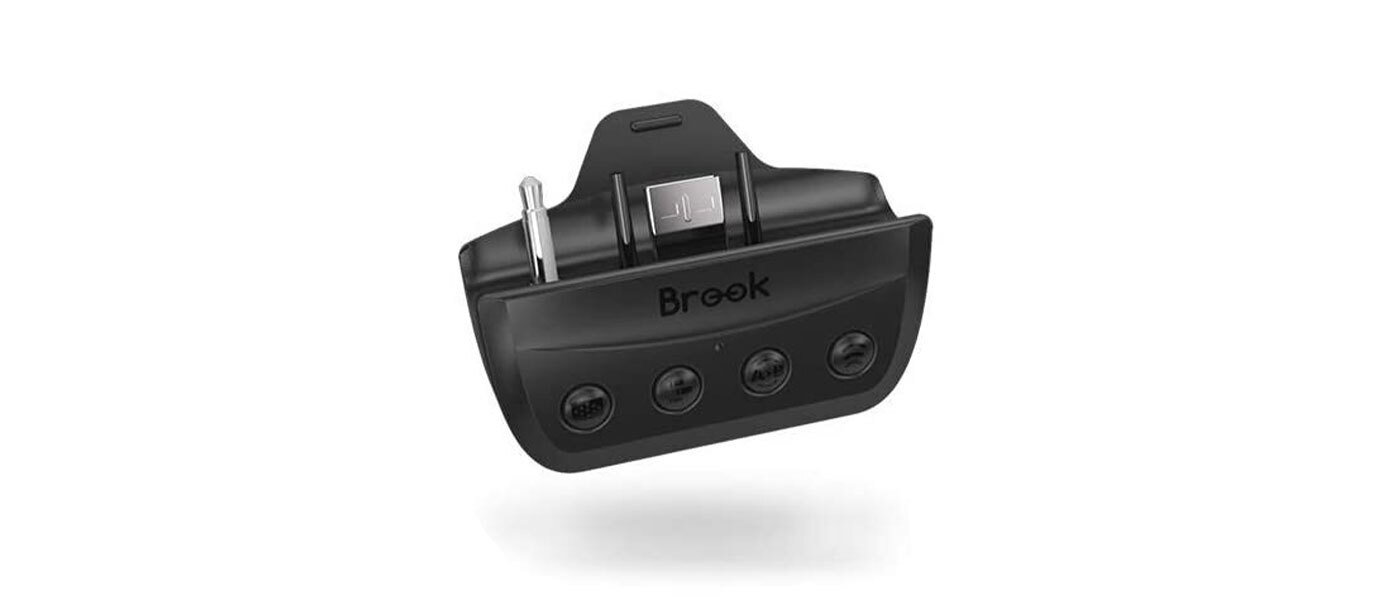
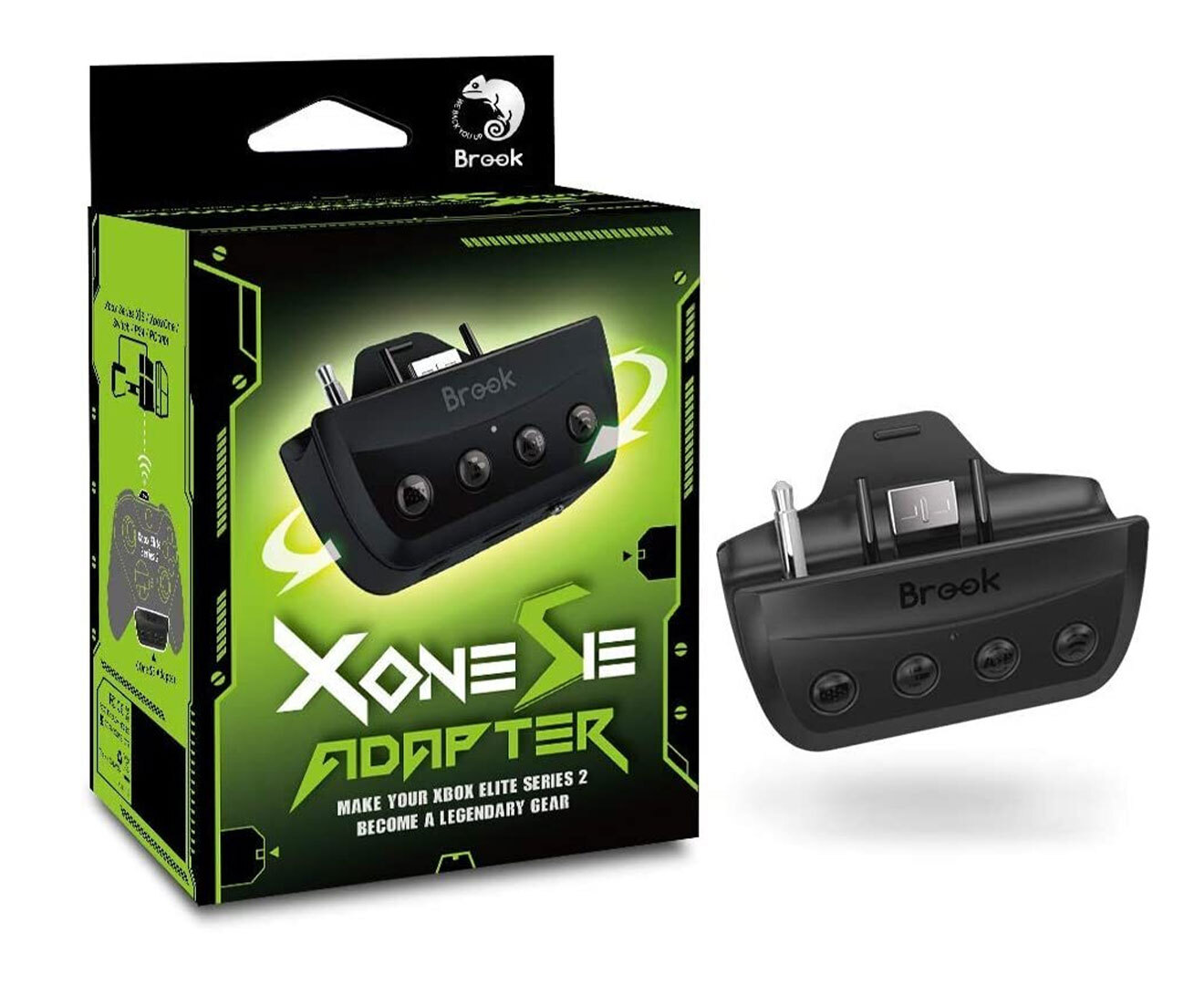
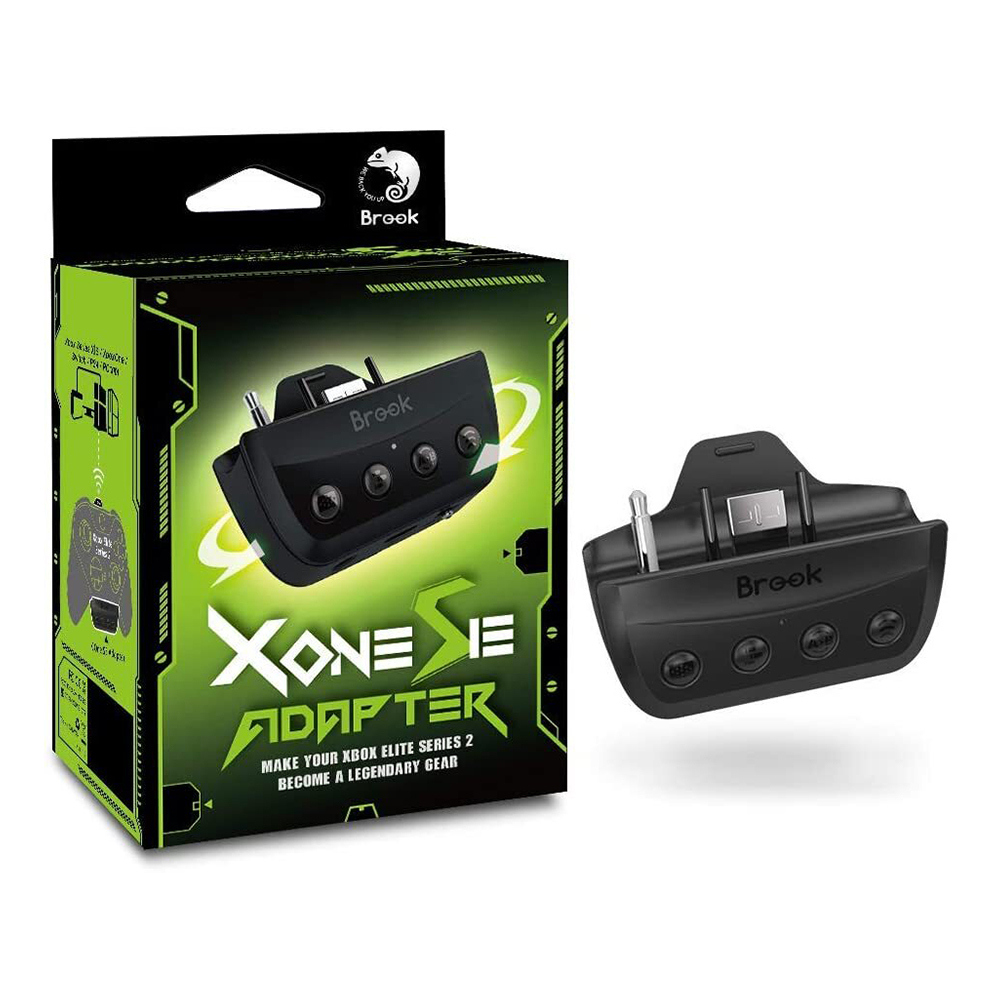
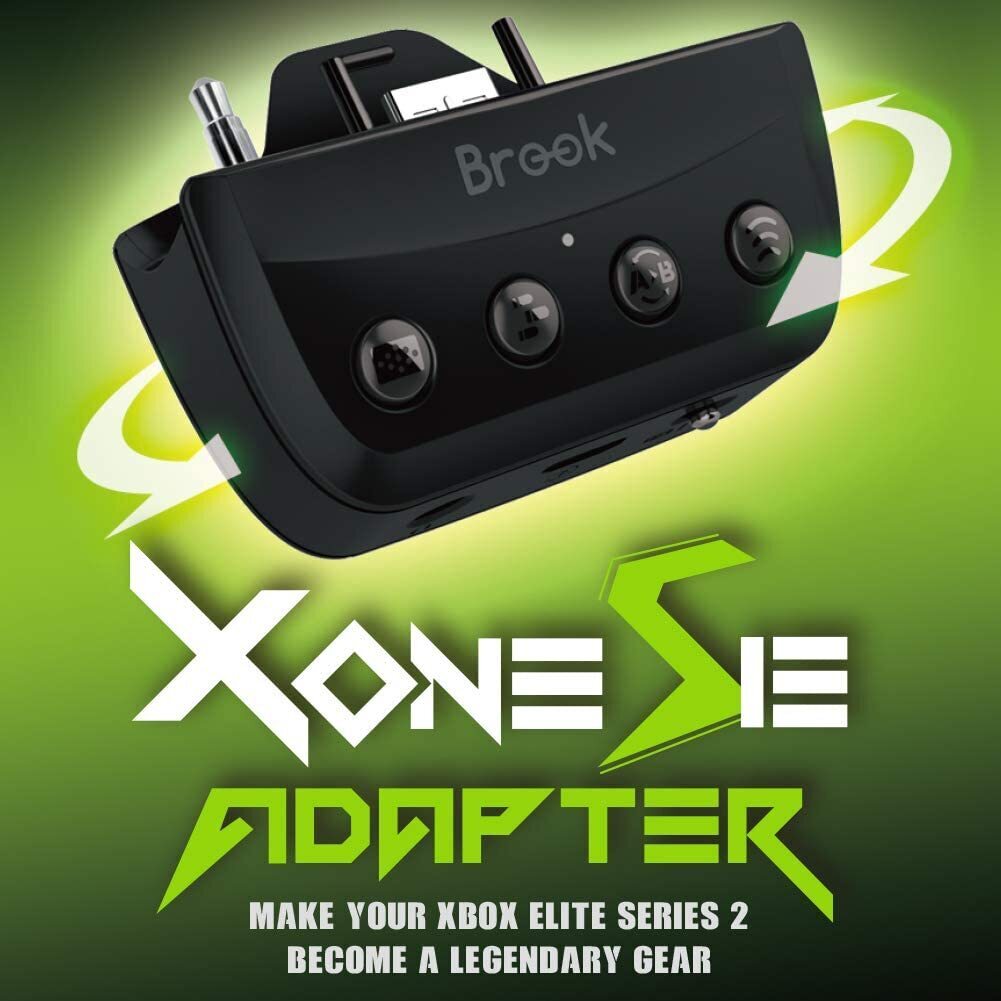
Brook X One SE Wireless Controller Adapter (Xbox Series X|S / Elite Series 2 to PS4/Switch)
AUD $97.90
In Stock
| SKU | 101128 |
| Barcode # | 4713291622245 |
| Brand | Brook |
| Colour | Black |
| Shipping Weight | 0.0200kg |
Help other users shop smarter by writing reviews for products you have purchased.
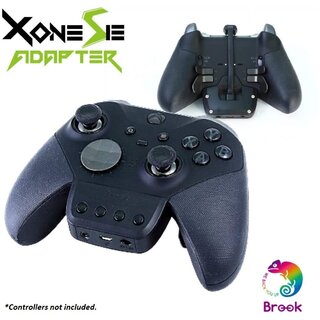
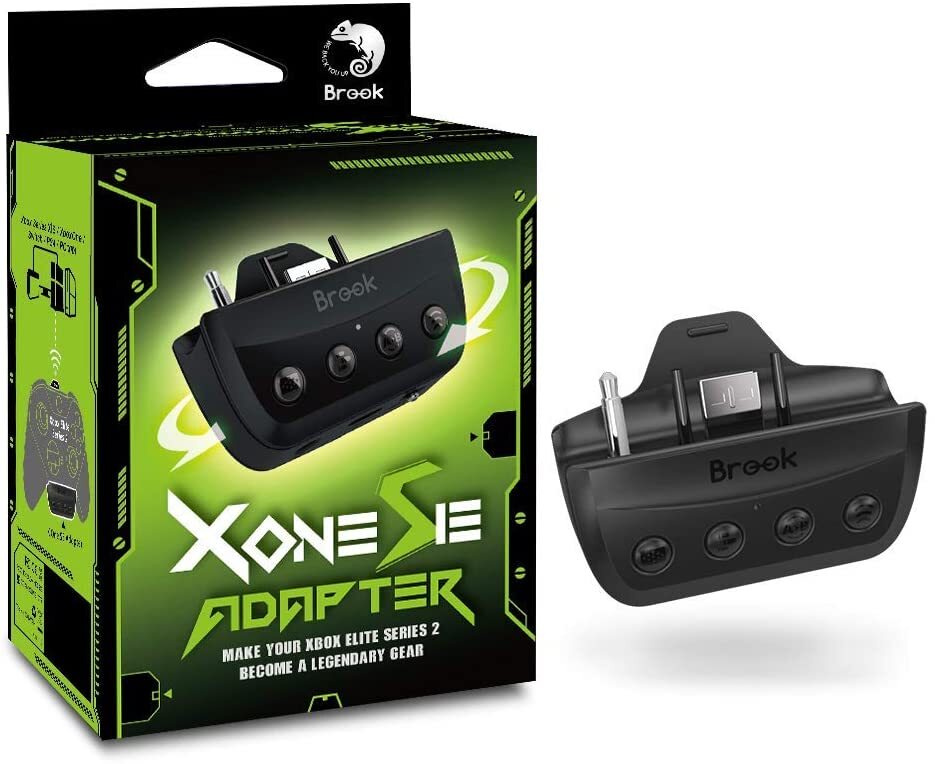
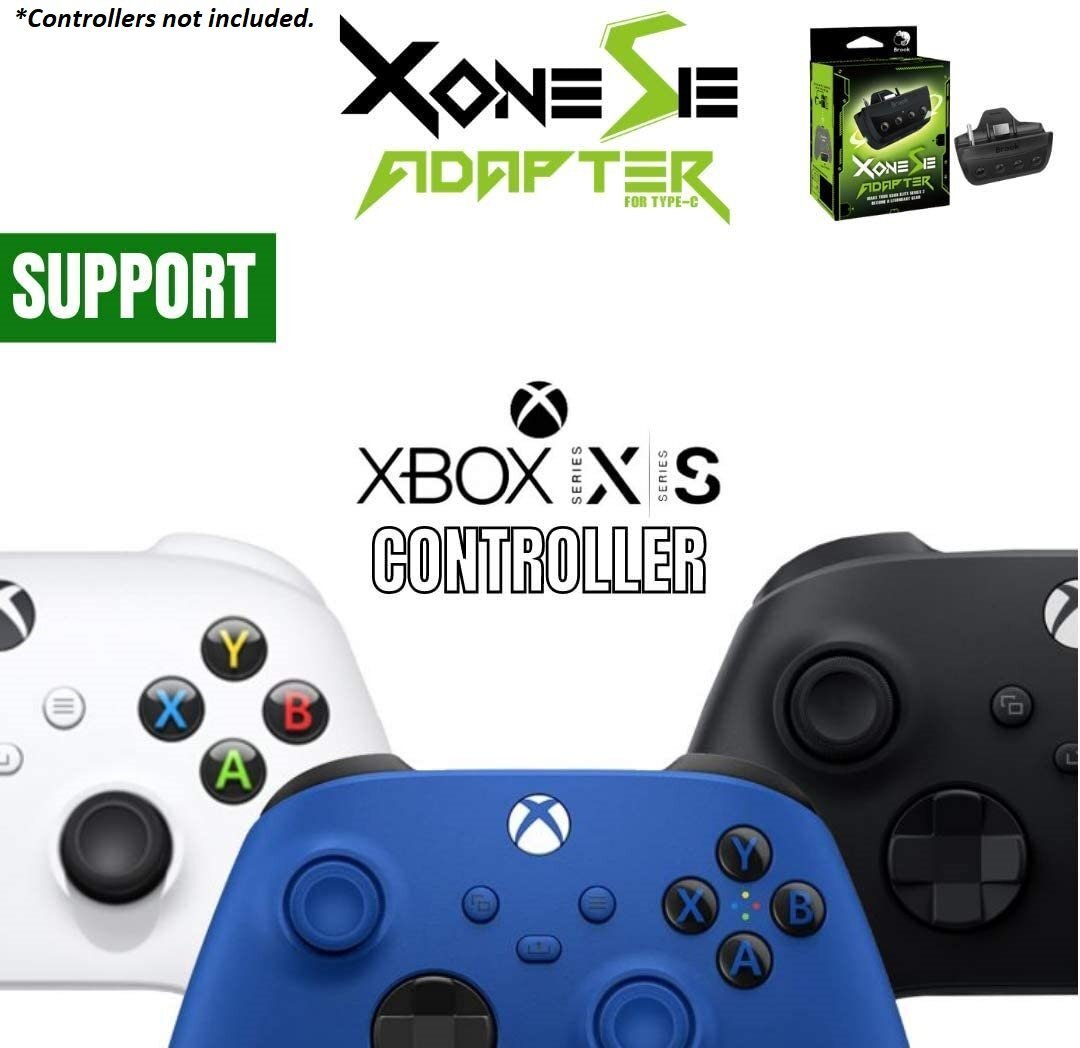
Use your Xbox Series X|S or Xbox Elite Series 2 controller on PS4 and Switch.
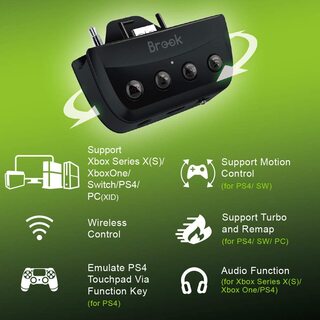
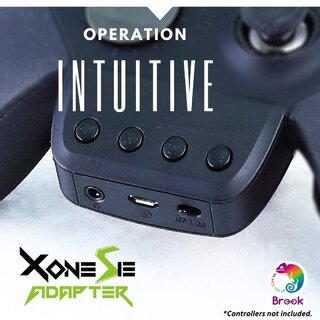
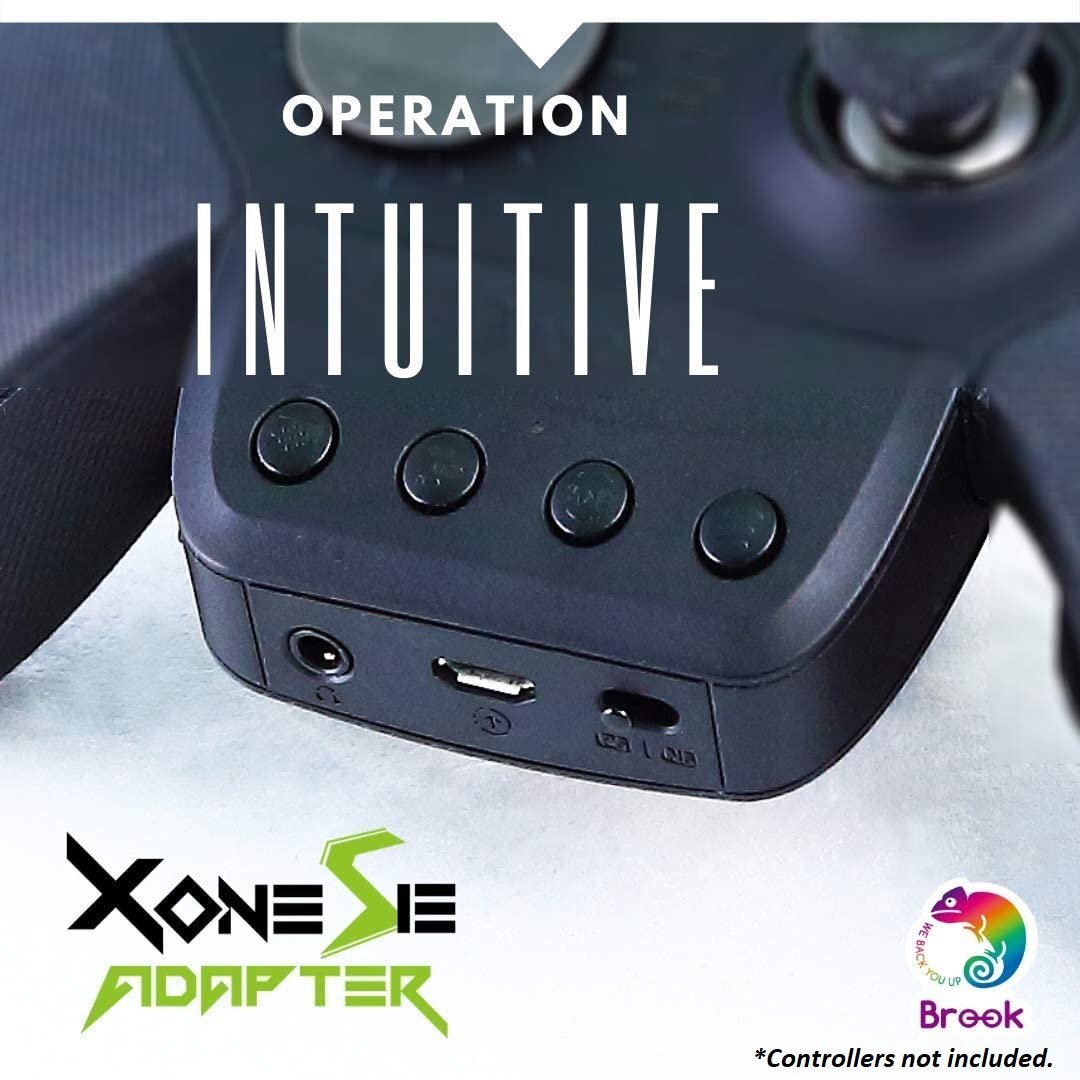
- Easy to use - Just switch the button to change the console mode for PS4 and Switch. Turbo and remap button to set up functions easily
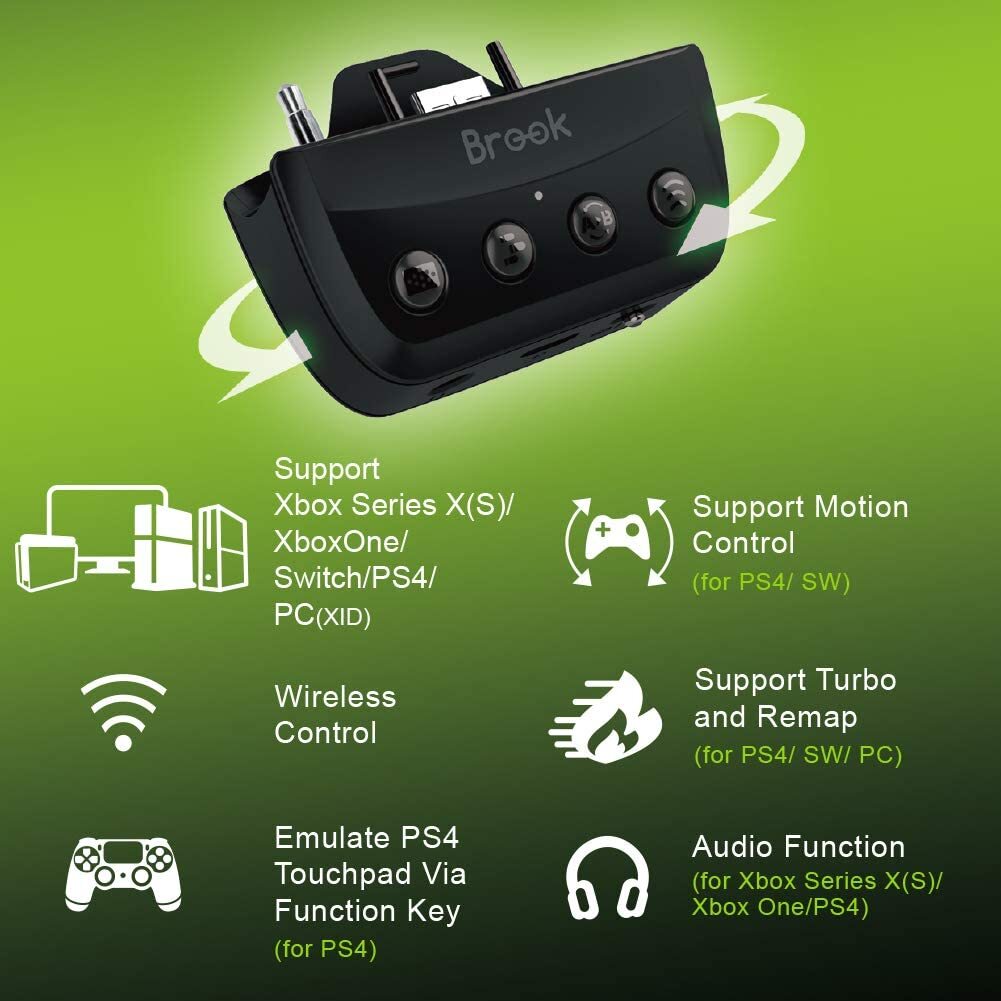
- Supports Audio Function and Motion Control
- Support Turbo and Remap (for PS4/ SW/ PC)
- Emulate PS4 touch Pad Via Function Key
- Supports motion control for PS4 and Switch. 3.5mm microphone headset for PS4 and Xbox One.
Please visit Brook's website to check for firmware updates before using.

Brook X One SE Adapter controller is perfectly compatible to Xbox Series X / S / One, PlayStation 4, Nintendo Switch and PC; motion control and 3.5mm microphone headset are entirely supported.


How to install
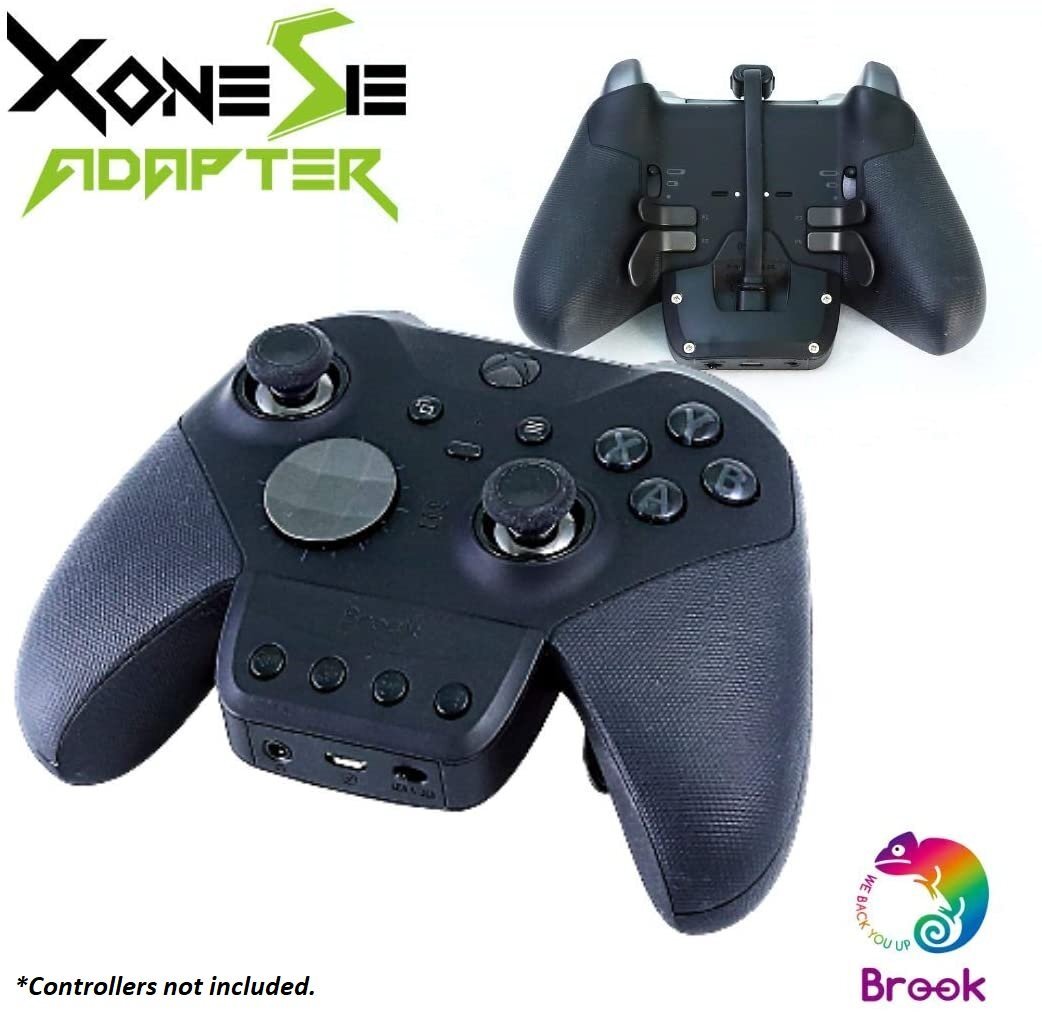
1. Plug the X One Adapter SE into the lower connector of the controller.
2. Flip over to the back of the controller.
3. Insert the Micro-USB end of the X One SE cable into the back connector of the X One SE.
4. Press and hold the cable so that it is flat against the controller.
5. Insert the Type-C end of the X One Adapter SE cable into the top connector of the controller.

How to use on PS4
Toggle the "PS4/Xbox One/Switch slide switch" to where it is labeled "PS".
Wired Connection:
Simply connect the controller to console via X One Adapter SE's "Upgrade/Charge port".
Wireless Connection:
The first time you use the X One Adapter SE, you need to pair it with the wireless controller: go to the "Bluetooth Device" screen and select "Wireless Controller" on your console setting. After waking up the controller, press and hold the “Hold/Wireless pairing button” of X One Adapter SE for 2 seconds to make the LED of X One Adapter SE blink red and blue alternately, and wait for a few seconds until the LED of X One Adapter SE shows a constant blue light. After that, you only need to wake up the controller every time you use the X One Adapter SE.

How to use on Xbox Series X/Xbox Series S/Xbox One/PC
- Toggle the "PS4/Xbox One/Switch slide switch" to the bar labeled between "PS" and “NS”.
- In this mode, the X One Adapter SE is set to off, please use the controller as a normal connection.
Note: If you need to use Remap/Turbo/Hold function when connecting to a PC, it is recommended that you connect in PS4 simulation mode.

How to use on Switch
Toggle the "PS4/Xbox One/Switch slide switch" to where it is labeled "NS".
Wired Connection:
Simply connect the controller to console via X One Adapter SE's "Upgrade/Charge port".
Wireless Connection:
The first time you use the X One Adapter SE, you need to pair it with the wireless controller: go to the "Controller" screen on your console. After waking up the controller, press and hold the “Hold/Wireless pairing button” of X One Adapter SE for 2 seconds to make the LED of X One Adapter SE blink red and blue alternately, and wait for a few seconds until the LED of X One Adapter SE shows a constant blue light. After that, you only need to wake up the controller every time you use the X One Adapter SE.

Use of Simulated Touchpad
When using on PS4, press and hold the X One Adapter SE's "Capture/Touchpad Simulate button” and the controller's right analog stick(RS) to simulate touchpad operation.
The default mode of “Capture/Touchpad Simulate button” is "Easy mode", and with RS, you can simulate pressing the touchpad.
However, you can enter "Full mode" temporarily by holding down the “Capture/Touchpad Simulate button”; in this mode, you can simulate more complete touchpad operation; RS simulates the track of sliding on the touchpad, and RSB simulates pressing the touchpad.
If you release the “Capture/Touchpad Simulate button” in "Full mode", it will return to "Easy mode" again.

Turbo Function
Function Settings
- Buttons that can be set as Turbo function buttons include: A, B, X, Y, LB, RB, LT, RT, LSB, RSB(hereinafter referred to as FK).
- Press the “Turbo button” and the FK button at the same time, the controller will vibrate to indicate the successful setting.
- EX: If you press "Turbo button" and "A" button at the same time, then "A" button can be turbo fire.
Cancelling Function
Cancellation of single button turbo function:
- If you press the "Turbo button” and the FK button that has been configured with the turbo function, the controller will vibrate to indicate that the setting is canceled.
- EX: If you press the "Turbo button” and the "A" button at the same time, the "A" button will cancel the turbo fire.
Cancellation of all button turbo function:
- Press and hold the “Turbo button” for 2 seconds, the controller will vibrate 3 times to cancel all the settings.

* For Gamory Gaming Equipment Product Support and Shipping & Returns, please click here
*Product on the video may differ from the actual product. Video is displayed to show the importance and use of the product.
Others Also Bought